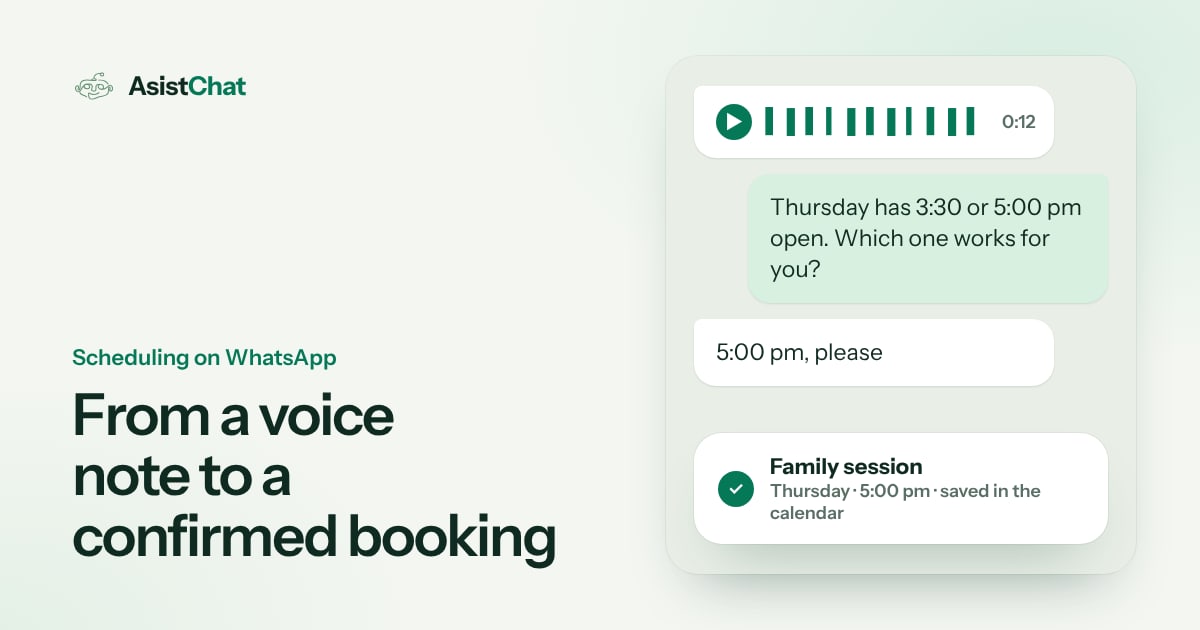
A WhatsApp scheduling agent with AI can understand a voice note, check your business’s availability and confirm the appointment after verifying it was saved in the calendar. It can also reschedule when the customer asks, if the integration and your team’s rules allow that change.
Every AsistChat agent includes audio and image processing. In a booking flow, the AI can pick up the preferred time from a voice note or use a service name that appears in a screenshot. It can also send an image your business has approved, such as a guide to finding the entrance. Before setup, we agree which sources it reads, which actions it can complete on its own and which requests it must pass to the team.
How a WhatsApp request becomes a confirmed appointment
- It understands the request. It identifies the service, the day or time window, even from a voice note. If “tomorrow afternoon” is ambiguous because of time zones or there is more than one possible location, it confirms the missing detail.
- It checks the authorized calendar. It looks for open slots taking into account duration, location, practitioner and service rules, and offers the options it can see at that moment.
- It books the chosen option. When the customer picks one, it checks availability again and makes the booking it is allowed to make. If someone else took the slot, it offers new options.
- It verifies the result and confirms. It checks that the saved event matches the service, date, time and location, and then sends those details on WhatsApp. If the result is uncertain, it checks the status before retrying or alerting the team.
Example: a booking that starts with a voice note
Picture a photography studio. Someone sends a screenshot of the catalog showing “Family session” and a voice note asking whether they can book Thursday after three. The agent identifies the service, checks the studio’s calendar and offers 3:30 and 5:00 pm. The person picks five. Once the appointment is saved and verified, they get the confirmation and an image showing the building entrance.
The next day, the same person asks in a voice note to move the session to Friday. The agent finds the booking, checks the times, asks them to choose one and updates the booking if the change is allowed. The final message states the new day and time. If the request arrives after the deadline the studio set, the team receives the case and decides how to handle it.
This example uses fictional data. In a test of your own operation you can repeat it with one service, one location and a test calendar.
What an agent can do with your calendar
Before choosing the integration, list the actions you need. A link for the customer to pick a time may be enough. A reminder can start from an event your team already created. If you want booking and rescheduling handled from the chat, the agent needs to read and write the calendar and verify that each action was saved.
Google Calendar lets you check busy times, create events and read the saved event back with the right permissions. For your project we review which calendar each service uses and what access the agent needs, and we define how to handle duplicate bookings or writes that do not return a clear confirmation. Google’s documentation on availability, creating events and reading saved events.
If your calendar lives in another system, the team checks which operations its integration supports. See AsistChat’s scheduling agent for the calendars we work with.
Reminders and no-shows
A confirmed appointment can still be lost if the person forgets or does not say they cannot come. A reminder does two jobs: it gets the patient there and it tells the front desk in time which slots are about to free up.
- When to send it. Many practices send one the day before and, if the calendar is tight, another the same morning. Leave enough time to offer the slot to someone else.
- What it should say. Day, time, practitioner, address and what to bring. Nothing else.
- How people reply. With one word: confirm or change. If they ask to change, the agent follows the same rescheduling flow and frees the old slot only after the new one is verified.
- Who sends it. One system per appointment. If the calendar and the agent both send reminders, the patient can get contradictory messages after a change.
If the reminder goes out more than 24 hours after the patient’s last message, the WhatsApp Business Platform requires an approved template. Measure before you automate: how many appointments were booked in the month, how many were confirmed and how many people did not show up. With those three numbers you can compare later.
What to test before going live
- A new appointment by text and another by voice note with a missing detail.
- A readable image with the service name and another that needs confirmation.
- Two requests for the same slot and a time change on an existing booking.
- A calendar that is temporarily unreachable and an exception your team must receive.
- A reminder sent with the right consent and template.
On the WhatsApp Business Platform, messages sent more than 24 hours after the customer’s last message require an approved template. Define consent and review the charges that apply to your account before turning on reminders. WhatsApp Business Messaging Policy.
To measure whether the flow works for you, track confirmed bookings, changes that were applied, handovers and the time your team spends reviewing appointments. Use a baseline from your own operation and keep tests separate from real requests.
Frequently asked questions
Does the agent understand WhatsApp voice notes?
Yes. Audio processing is included in AsistChat agents. If the audio is unclear or details are missing, the agent can ask to confirm the service, location or date.
Can it receive and send images?
It can process images it receives within the agreed scope. For scheduling it can also send approved material, such as a visual guide to reach the premises. The setup defines which images it can use and for what.
When is an appointment confirmed?
After the person chooses an option and the agent verifies that the booking was saved with the expected details. If the result is pending, it says so and hands over according to the agreed rules.
How is an appointment rescheduled on WhatsApp?
The agent finds the booking, checks the alternatives and applies the chosen change if the integration and rules allow it. Then it verifies the new time in the calendar and sends the confirmation.
What happens if the calendar cannot be reached?
The agent says availability is pending and follows the agreed path to retry or hand the case to a person. Confirmation always depends on verifying the booking.
What does my business need to get started?
A reference calendar, your hours and rescheduling rules, the people responsible for exceptions and access that lets us test the integration. AsistChat can help you decide which parts of the process to delegate and how to validate them.